Troubleshooting
Welcome to the troubleshooting page. Since shapeXT heavily relies on modern graphics APIs (specifically Vulkan 1.3 and above) to achieve its high rendering performance, most common issues are related to graphics drivers or hardware compatibility.
Please find known issues and solutions for your operating system below. If your problem is not listed here, please press F8 inside the application to submit a bug report, or contact me via email at mail@shapeXT.com.
General
Severe performance drop or slowdown in full-screen mode
- Symptom: shapeXT becomes noticeably sluggish when entering full-screen mode or running at high display resolutions.
- Cause: Running at full-screen (especially on high-resolution displays like 1440p or 4K) significantly increases GPU memory (VRAM) consumption. Because shapeXT uses multiple render buffers alongside multi-sample anti-aliasing, the default setting (4xMSAA + FXAA) can exceed your graphics card's available VRAM. When VRAM fills up, the driver swaps memory to system RAM, causing a steep performance drop.
- Solution: Try the following steps to reduce VRAM usage:
- Option 1: Reduce Anti-Aliasing (Recommended)
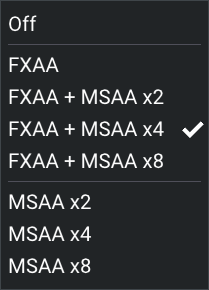
- Go to the menu bar and select Options → Anti-Aliasing.
- Change the setting to FXAA (or Off). FXAA is a post-processing filter that provides clean edge smoothing without requiring additional VRAM.
- If your GPU has moderate VRAM headroom, you can also test intermediate options like 2xMSAA + FXAA to balance visual quality and performance.
- Option 2: Reduce the Transparency Alpha Buffer Size (Not Recommended)
- By default, shapeXT reserves 1024 MiB (1 GB) of VRAM for Order-Independent Transparency (OIT) to correctly render complex overlapping molecular/crystal structures.
- Open the configuration file located at
Config/Vulkan.tomlin the shapeXT main folder with a text editor. - Locate the
AlphaBufferSizeparameter and lower its value (e.g., to512MiB): - Note: Lowering this buffer frees up significant VRAM, but if the buffer becomes too small, transparency effects may exhibit rendering artifacts.
Windows
Verifying Vulkan Support
- Symptom: shapeXT fails to start, throws a graphics-related error, or you suspect your drivers are outdated.
- Cause: Your system might be missing proper or up-to-date Vulkan drivers.
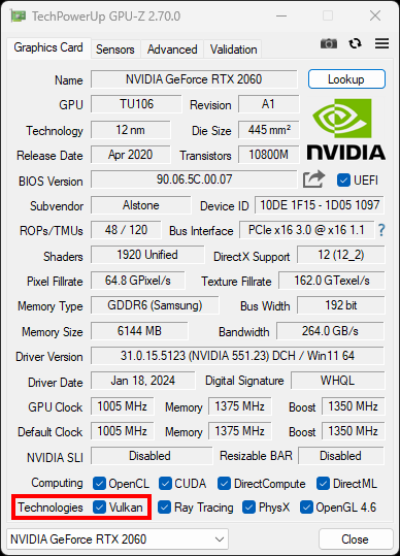
- Solution: You can verify your Vulkan support using the free diagnostic tool GPU-Z.
- Download and run TechPowerUp GPU-Z.
- Look at the bottom of the main window.
- Check if the box next to Vulkan (in the “Computing” or “Technologies” section) is ticked with a green checkmark (red box).
- If it is not checked, please download and install the latest graphics drivers directly from your GPU manufacturer's website (NVIDIA, AMD, or Intel).
shapeXT closes immediately after launch (Intel Arc Graphics, FIXED)
- Symptom: You launch
shapeXT.exe, the main window briefly flashes with a white background, and then immediately closes/crashes. - Cause: This is a known bug in the current beta version (v2026.06.0) related to Vulkan initialization on systems using integrated Intel Arc graphics.
- Solution: A fix was provided in version v2026.06.1.
macOS
Application fails to launch
- Symptom: shapeXT cannot be opened, crashes immediately, or macOS displays an architecture/compatibility warning.
- Cause: shapeXT has been optimized for modern Mac hardware and only supports Apple Silicon chips (M-series).
- Solution: Older Intel-based Macs are not supported. To run shapeXT, you need a Mac with an Apple Silicon processor. You can verify your processor by clicking the Apple Logo in the top-left menu bar and selecting About This Mac.
GNU/Linux
Application does not start / terminal shows Vulkan errors
- Symptom: Running the
shapeXT.shscript results in a crash, often accompanied by terminal output mentioning “Vulkan”, “VK_ERROR”, or “instance creation failed”. - Cause: Missing or misconfigured Vulkan drivers on your Linux distribution.
- Solution: You can easily test if Vulkan is set up correctly on your system by using the vkcube utility.
- Open your terminal.
- Run the command:
vkcube(you may need to install thevulkan-toolspackage first via your package manager, e.g.,sudo apt install vulkan-tools). - If a window opens showing a spinning 3D cube, your Vulkan installation is working properly and shapeXT should run.
- If
vkcubefails to run or throws an error, you need to install the correct Vulkan drivers for your graphics card (e.g.,mesa-vulkan-drivers,vulkan-radeon, or the proprietary NVIDIA drivers depending on your distribution).